> ## Documentation Index
> Fetch the complete documentation index at: https://agency-swarm.ai/llms.txt
> Use this file to discover all available pages before exploring further.
# Running an Agency
> How to run an Agency.
When it comes to running your agency, Agency Swarm provides 3 main methods:
1. **CopilotKit/AG-UI Interface**: The most modern and recommended way to get started.
2. **Get Response**: For backend or custom integrations.
3. **Terminal Version**: Best for quick debugging and testing.
## Pre-requisites for CopilotKit/AG-UI Demo
To use the CopilotKit/AG-UI demo (`copilot_demo()`), make sure you have the following installed:
* **Node.js** (v18 or newer recommended): [Download Node.js](https://nodejs.org/)
* **npm** (comes with Node.js)
If these requirements are not met, the demo will not start and you will see an error message.
## CopilotKit/AG-UI Interface
To open a CopilotKit interface, use the `copilot_demo` method:
```python theme={null}
agency.copilot_demo()
```
This will launch both the backend and a Next.js frontend. Simply follow the `localhost` link from the terminal to start using your agency in a chat-based UI.
## Get Response
To get a response from your agency directly in code, use the async `get_response` method:
```python theme={null}
import asyncio
async def main():
result = await agency.get_response("I want you to build me a website")
print(result.final_output)
asyncio.run(main())
```
**With additional parameters:**
```python theme={null}
async def main():
result = await agency.get_response(
message="I want you to build me a website",
additional_instructions="This is an additional instruction for the task.",
recipient_agent=dev # Optional: specify which agent to send to
)
print(result.final_output)
asyncio.run(main())
```
**Synchronous version:**
```python theme={null}
result = agency.get_response_sync(
message="I want you to build me a website",
additional_instructions="This is an additional instruction for the task.",
recipient_agent=dev # Optional: specify which agent to send to
)
print(result.final_output)
```
**Parameters**:
* `message`: The message to send to the agency.
* `additional_instructions` (optional): Additional instructions that will be appended at the end of instructions for the recipient agent.
* `recipient_agent` (optional): The agent to which the message should be sent.
## Track Usage and Cost
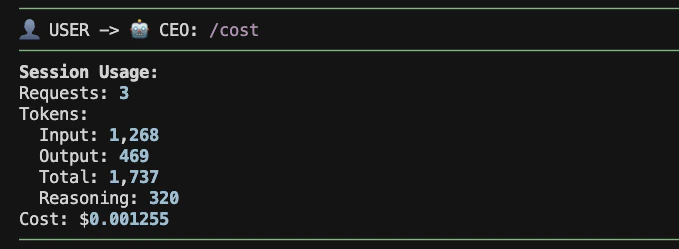
Use the `/cost` command in the TUI to see the current session usage and cost.
 To understand what's inside the `usage` object, see [Observability](/additional-features/observability#usage-payload).
If you're running your agency as an HTTP API, see [Serving Agencies as APIs](/additional-features/fastapi-integration).
## Terminal UI
The recommended terminal launch path is:
```bash theme={null}
npx @vrsen/agentswarm
```
Run it from your project root when you want the launcher to handle first-run setup and open the terminal UI for you.
This path lets the launcher detect the agency from your project and open the TUI connected to it. Use it when you want the easiest setup path.
For the full launch flow, first-run auth, and the optional terminal launch paths, see [Agent Swarm TUI](/core-framework/agencies/agent-swarm-cli).
If you already launch from Python, `agency.tui()` is still supported:
```python theme={null}
agency.tui()
```
Use `agency.tui(reload=False)` if you want to turn off hot reload on file changes.
This Python path stays bound to the `Agency` instance you launch from code by starting the local bridge automatically.
When using the terminal to run the agency, you can send messages directly to any top-level agent by using the "mentions" feature. To do this, start your message with the agent's name preceded by an @ symbol (for example, `@Developer I want you to build me a website`). This directs your message to the specified agent instead of the CEO. You can also press the tab key to autocomplete the agent's name.
`tui(show_reasoning=False)` is not supported in the new TUI yet.
To understand what's inside the `usage` object, see [Observability](/additional-features/observability#usage-payload).
If you're running your agency as an HTTP API, see [Serving Agencies as APIs](/additional-features/fastapi-integration).
## Terminal UI
The recommended terminal launch path is:
```bash theme={null}
npx @vrsen/agentswarm
```
Run it from your project root when you want the launcher to handle first-run setup and open the terminal UI for you.
This path lets the launcher detect the agency from your project and open the TUI connected to it. Use it when you want the easiest setup path.
For the full launch flow, first-run auth, and the optional terminal launch paths, see [Agent Swarm TUI](/core-framework/agencies/agent-swarm-cli).
If you already launch from Python, `agency.tui()` is still supported:
```python theme={null}
agency.tui()
```
Use `agency.tui(reload=False)` if you want to turn off hot reload on file changes.
This Python path stays bound to the `Agency` instance you launch from code by starting the local bridge automatically.
When using the terminal to run the agency, you can send messages directly to any top-level agent by using the "mentions" feature. To do this, start your message with the agent's name preceded by an @ symbol (for example, `@Developer I want you to build me a website`). This directs your message to the specified agent instead of the CEO. You can also press the tab key to autocomplete the agent's name.
`tui(show_reasoning=False)` is not supported in the new TUI yet.